
Learn how to use Signalgrid as notification channel in Checkmate
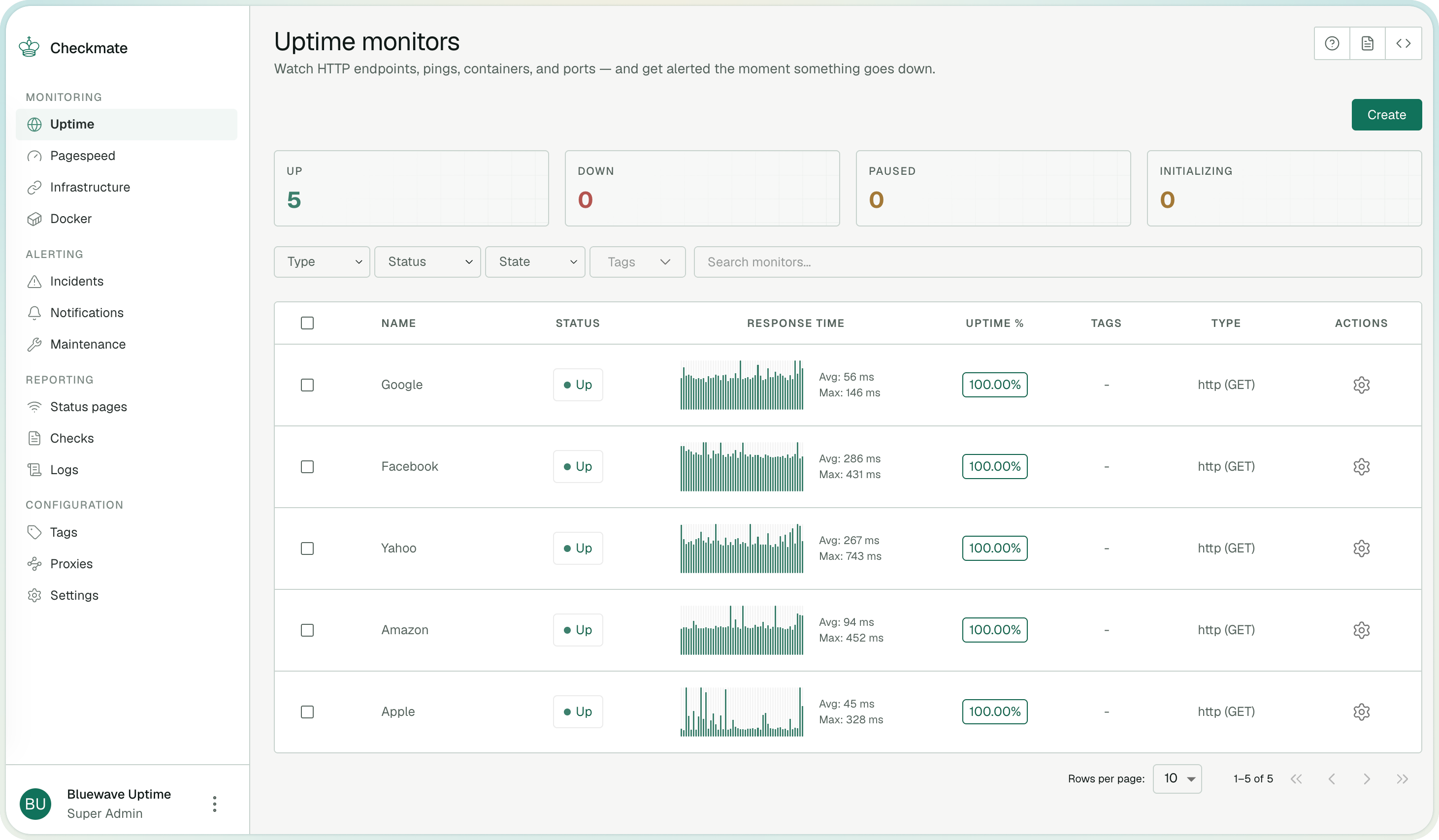
Signalgrid is available in Checkmate as a native notification channel.
That means you can connect your Checkmate monitors directly to Signalgrid without building a custom webhook bridge or helper script first.
Once configured, Checkmate can send monitor events straight to your Signalgrid channel so outages, warnings, recoveries, and status changes arrive immediately on your devices.
Minimum Version Required
Signalgrid was added natively in Checkmate v3.12.0.
What You Need
- A running Checkmate instance with the Signalgrid notification channel available
- A Signalgrid account
- Your Signalgrid Client Key
- Your Signalgrid Channel Token
How To Set It Up
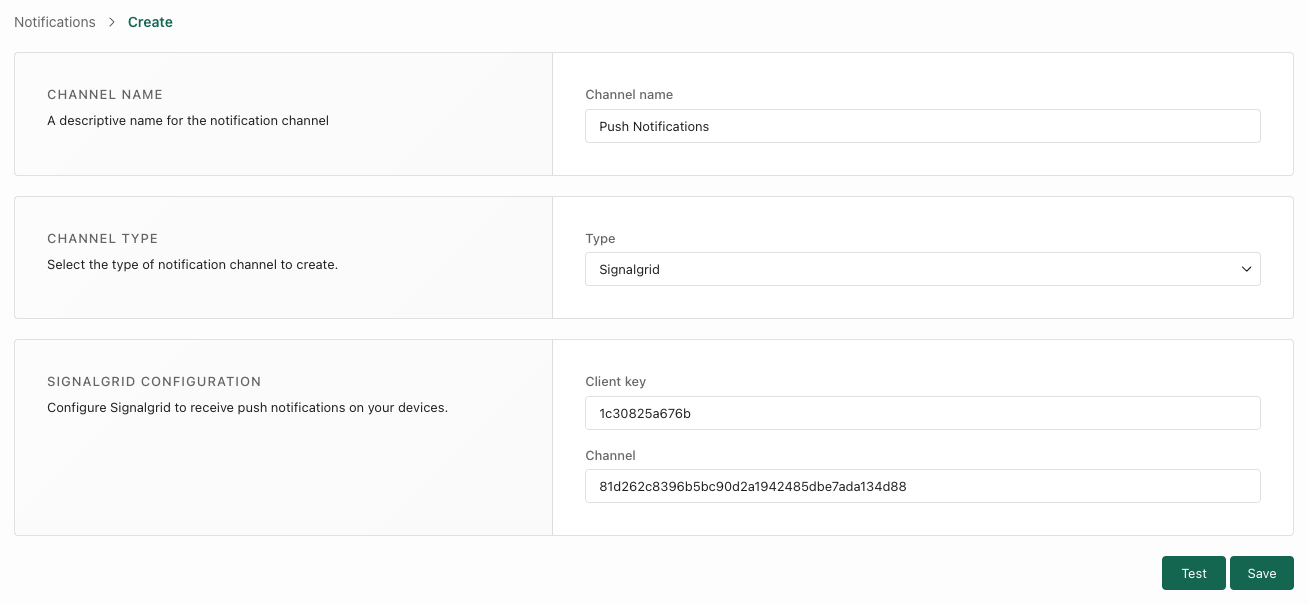
- Open Checkmate
- Go to Notifications
- Create a new notification channel
- Enter a channel name such as Production Alerts
- Select Signalgrid as the channel type
- Paste your Client key and Channel
- Click Test to verify delivery
- Save the notification channel
Now you can assign the notification channel to the monitors you created.
Required Fields
Field
Description
Channel nameA descriptive name for the Checkmate notification channel
Client keyYour Signalgrid client key used by Checkmate to authenticate notification delivery
ChannelThe Signalgrid channel token that should receive the Checkmate alerts
How Checkmate Sends Alerts To Signalgrid
Checkmate sends notifications to the Signalgrid Push API and maps the Checkmate alert severity to the matching Signalgrid notification type.
Checkmate event
Signalgrid behavior
Test notification
Sends a notification titled
Checkmate Test Notification with type INFOCritical alert
Mapped to
CRITWarning alert
Mapped to
WARNRecovery / success alert
Mapped to
SUCCESSAny other alert state
Mapped to
INFONotification Content
Signalgrid notifications sent by Checkmate can include the alert summary, monitor name, URL, monitor type, current status, optional extra details, threshold-breach information, and a direct incident link when an incident exists.
Why Use Signalgrid With Checkmate
- Native setup directly inside Checkmate
- No webhook relay or custom glue code required
- Fast push notifications to iPhone, Android, and the web
- Useful for uptime incidents, response issues, threshold alerts, and recovery events