
Synology Webhook Notifications
Updated on March 29, 2026
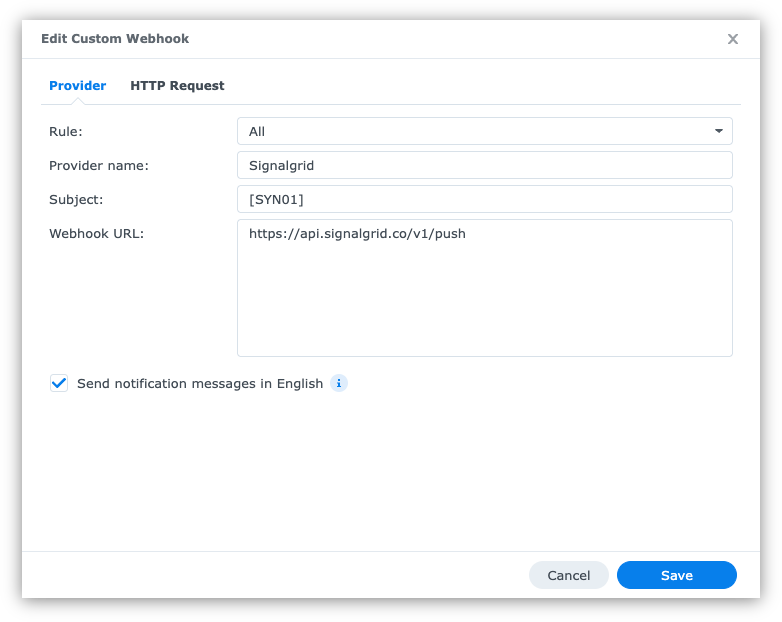
Synology DSM can send system events to external services through its custom webhook notification feature. By pointing that webhook to the Signalgrid Push API, you can forward NAS alerts such as storage warnings, backup failures, degraded volumes, UPS events, or service notifications directly to your mobile devices.
This is a simple way to turn built-in DSM notifications into modern push alerts without running an extra relay service on your NAS.
https://api.signalgrid.coWhen DSM generates a notification, Synology sends an HTTP request to the custom webhook URL you configured. That request can be sent to the Signalgrid Push API endpoint and include the values Signalgrid needs to create a notification:
client_keychanneltitlebodytypeINFO, WARN, SUCCESS, or CRITcriticalUse the following API endpoint as the target for your Synology webhook:
https://api.signalgrid.co/v1/pushThe request should be sent as an HTTP POST request.
In DSM, open the notification settings and look for the Custom or Custom Webhook notification option. The exact labels can vary slightly between DSM versions, but the workflow is the same:
https://api.signalgrid.co/v1/pushPOSTapplication/x-www-form-urlencodedclient_key in the request bodyA simple DSM webhook body can look like this:
client_key=YOUR_CLIENT_KEY&channel=YOUR_CHANNEL_TOKEN&type=WARN&title=Synology NAS Alert&body=DSM generated a new notificationThis example sends every Synology event as a WARN notification. That is usually a good default for infrastructure notifications coming from a NAS.
Many DSM versions allow event-specific variables to be inserted into the webhook payload. If your DSM interface exposes variables for the event title, subject, hostname, severity, or message text, place those values into the Signalgrid title and body fields.
The exact variable names depend on the DSM version and the notification editor you are using, so the safest approach is:
titlebodyclient_key and channel staticA practical finished payload often looks like this pattern:
client_key=YOUR_CLIENT_KEY&channel=YOUR_CHANNEL_TOKEN&type=WARN&title=[DSM event title variable]&body=[DSM event message variable]If Synology does not let you dynamically map severities, choose a fixed Signalgrid type that matches the purpose of the webhook:
INFOWARNSUCCESSCRITIf you want truly urgent NAS problems to break through silent mode, add critical=true to the request body:
client_key=YOUR_CLIENT_KEY&channel=YOUR_CHANNEL_TOKEN&type=CRIT&critical=true&title=Storage pool degraded&body=Immediate attention is required on your Synology NASOnly use this for important incidents. If every DSM event is sent as critical, the integration becomes noisy and people start ignoring it.
If your DSM version lets you configure more than one custom notification rule, it is worth separating them by severity:
type=INFO or type=WARNtype=CRIT and critical=truetype=SUCCESSThis keeps your Signalgrid channel much easier to scan and prevents normal events from looking like emergencies.
After saving the Synology custom webhook, use the DSM test function if it is available. You should receive a Signalgrid notification on every device subscribed to the selected channel.
If DSM does not provide a test button for your webhook screen, you can verify the same payload manually with curl from another machine:
curl -X POST https://api.signalgrid.co/v1/push \
    -d "client_key=YOUR_CLIENT_KEY" \
    -d "channel=YOUR_CHANNEL_TOKEN" \
    -d "type=WARN" \
    -d "title=Synology test notification" \
-d "body=This is a manual test for the DSM webhook integration"client_key, channel, and outbound HTTPS access from the NAShttps://api.signalgrid.co/v1/push and the request method is POSTtitle and body values with the event variables offered by DSMcritical=true and use a softer type such as WARN for normal alerts